Chat Beta

Showing posts with label Automation. Show all posts

12/21/2016

Unit Tests With Telerik- A Simple End-To-End UI Test Automation Solution

Thinking about automating functional tests (UI) for the web application that I work with, and having the idea to make it an "End-to-end" solution where tests are written and pushed to the test runner, are then picked up and run against SUT automatically, and finally a result of the test status is sent to user in the form of a mail, following was an attempt that I made during last couple of days which I guess works fine at the moment. Sharing the experience hoping it will shed some light to others

If you have a working CI environment like Jenkins or TFS, it may be handy as it  will do the most of the things out of the box, but in my case I had to come up with my own way of achieving it.

The entire project can be found here .

Following technology/ tools stack was used to achieve this
 1. Telerik Testing Framework - This is the tool used for writing UI tests. You might probably be using Selenium webdriver over Telerik as your preference  
 2. Visual Studio 2013/15- 'VSUnit' unit-test framework with C#  
 3. Python scripting language - To automate some background tasks like sending mail, reading log files, achieving files etc.  
 4. DOS batch files- To initiate the test building and running  
 5. SMTP Server - This is to send out the status mail that is composed at the end of the test run. I use a free version of an easy to setup mail server called MailEnable for this purpose.  
 6 . Windows Task Scheduler -To schedule test runs  
 7. Command line tools - MSBuild.exe, MSTest.exe - This is to build the visual studio project and run the tests in 'Test Runner' machine  
 8. Dedicated VM for running the tests- Which I call it the 'Test Runner'. Test Runner will run the UI tests at scheduled time without user-intervention  
 9. Github repository for version controlling and pushing tests to 'Test Runner' after they are being developed and tested locally.  
 10. Git command "git pull" to pull new changes back to the test runner  

Telerik Test Studio is a commercial grade UI Test automation platform that helps QA professionals to automate their functional test in Web , Silverlight and WPF applications. 

Telerik Test Framework is their .net library that the Test Studio is built upon which can be freely downloaded from there site. Its free to use under certain conditions. It contain automation infrastructure library + various other libraries to support browsers, proxy , Silverlight etc. We will have to write code to accomplish what is expected from our tests.

We adopt the 'Page object model" when handling locators which could reduce potential maintenance overhead in the long run. If you want to know what it is, click here and here

Once the Telerik Framework is installed in the PC, we can start using it via Visual studio.

We start with a new project in VS, and select "Unit Test Project" from "Test" under "Templates"


 We will need to add references to the solution to make it work


Then use "VsUnit" test under "Telerik TestingFramework" . VsUnit is the Visual studio team test with unit testing framework. Since we develop our tests using Visual studio its a better option to use VsUnit rather than other unit test frameworks lik MBUnit or NUnit


In VsUnit test template, you get several methods and you can write your tests under [TestMethod] section


Once tests are built, they will appear in "Test explorer" in VS


we can manually execute tests from the "Test explorer"


The project  structure looks like following
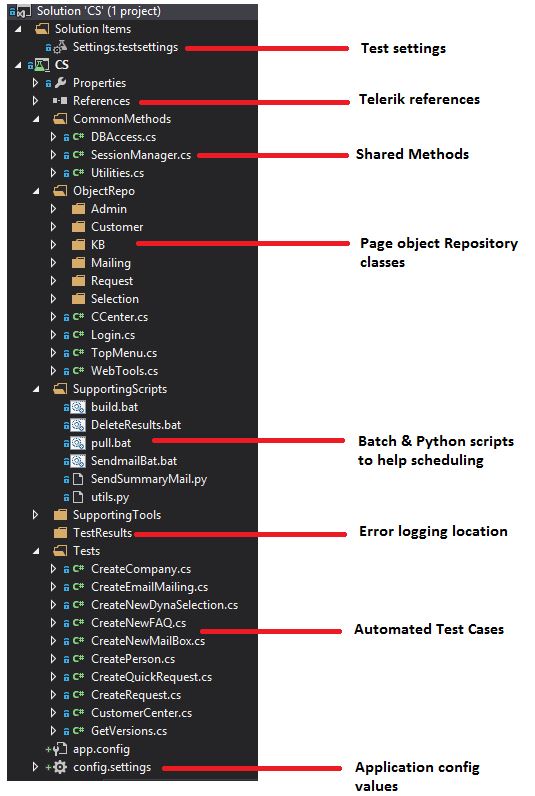


I have developed some utility methods that can be reused in tests which ease the development efforts. You will find them under 'common methods' folder

Following methods are available.
 1. A separate class has been written to handle database interactions. It has methods to connect, execute and retrieve result from the database.  
 2. A method is implemented to capture screenshots and error logs, which can be used for error handling purposes.  
 3. An email sending method has been added which can be called in a test when you need to send a mail to a recipient.  
 4. A method to provide keyboard inputs to a text field in your application. It has been overloaded so that it can handle text fields in both documents and iframes.  
 5. A random data generating method which can be used as an input.  

Tests can be scheduled to run automatically against a SUT in the following manner.


We can create a batch scripts to initiate the process, first by pulling the new changes from the remote repository to the test runner, and then run MSBuild.exe to rebuild the project and run the test using MSTest.exe. Here the result output is directed to a log file instead of them being printed in the console. This log file later be fed to the email body.
 @echo off 
 "C:\Windows\Microsoft.NET\Framework64\v4.0.30319\MSBuild.exe" "C:\GIT\Telerik\CS.sln" /p:configuration=debug  
 call pull.bat
 "C:\Program Files (x86)\Microsoft Visual Studio 12.0\Common7\IDE\MSTest.exe" /testcontainer:"C:\GIT\Telerik\CS\bin\Debug\CS.dll" /testsettings:"C:\GIT\Telerik\Settings.testsettings" >>"C:\GIT\Telerik\CS\TestResults\Summary.log"  
 exit  

Also add a testsettings file to the project where we can invoke some actions before and after the test execution


For example, here I call a script to delete files in the result log before a new test run begins and call a batch script to send out the mail after the test run is finished. 

How the mail is composed (by reading log files and attaching error-dumps), is done using a python script which can be found in the git repo.
 https://github.com/tharinda2012/Telerik/blob/master/CS/SupportingScripts/SendSummaryMail.py  
 https://github.com/tharinda2012/Telerik/blob/master/CS/SupportingScripts/utils.py  

The parameters that must be fed to the tests can be given in a config like following


The Status of each test run will be notified to the user via an email as below


In case you use mouse or key board actions inside the test scripts to achieve certain tasks, you might encounter issues when running tests if the running machines are locked (no active session). In this case following approach can be used to remedy it.


3/08/2016

Automating your tasks with Zapier

I had a requirement at my work place where I need to keep an eye on the latest news (releases, vulnerabilities, new features etc) of the 3rd party Software that our Product depends on. This includes Windows Operating systems, Databases, Office and Apple OS etc.
I achieved this by creating some 'Zaps' and automating the process.

I found that most of the latest and reliable information is found in the official blog sites of the respective vendors.
Then I used their RSS feed URLs ex:
  • https://blogs.windows.com/feed
  • https://blogs.office.com/feed
  • https://blogs.technet.microsoft.com/dataplatforminsider/feed
  • https://www.apple.com/main/rss/hotnews/hotnews.rss
and then used them in Zaps.

You can create a Zap by login to Zapier.com and then use its 'RSS by Zapier' and Gmail integration. So I set the trigger saying, when a new blogpost is added, then send me a notification as amail To my desired mail client


Once done, the zaps will be listed in the app dashboard like this:


7/27/2015

Disk check in a partition to remind the remaining space(Python script)

1:  __author__ = 'someone'  
2:  #!/usr/bin/env python  
3:    
4:  """  
5:  Return disk usage statistics about the given path as a (total, used, free)  
6:  namedtuple. Values are expressed in bytes.  
7:  """  
8:    
9:  import os  
10:  import collections  
11:    
12:  _ntuple_diskusage = collections.namedtuple('usage', 'total used free')  
13:    
14:  if hasattr(os, 'statvfs'): # POSIX  
15:    def disk_usage(path):  
16:      st = os.statvfs(path)  
17:      free = st.f_bavail * st.f_frsize  
18:      total = st.f_blocks * st.f_frsize  
19:    
20:      used = (st.f_blocks - st.f_bfree) * st.f_frsize  
21:      return _ntuple_diskusage(total, used, free)  
22:    
23:  elif os.name == 'nt':    # Windows  
24:    import ctypes  
25:    import sys  
26:    import smtplib  
27:    
28:    SMTPServer='mail.maildomain.com'  
29:    sender = 'diskcheck@buildDL.test'  
30:    receiver = 'tester@test.test'  
31:    
32:    def sendmail( message):  
33:      try:  
34:        smtpObj = smtplib.SMTP(SMTPServer)  
35:        smtpObj.sendmail(sender, receiver, message)  
36:      except Exception as e:  
37:        print("e-mail sending error occured: " + e)  
38:    
39:    def m_diskCheck():  
40:      msgunreach="From: Auto Builder " + "\n" + \  
41:            "To: Testing Team" + "\n" + \  
42:            "Subject:Disk size in file server is below 20GB, Please delete some older files!!!\n\n" + \  
43:            "This is a system generated e-mail. Do not reply"  
44:      return (msgunreach)  
45:    
46:    def disk_usage(path):  
47:      _, total, free = ctypes.c_ulonglong(), ctypes.c_ulonglong(), \  
48:                ctypes.c_ulonglong()  
49:      if sys.version_info >= (3,) or isinstance(path, unicode):  
50:        fun = ctypes.windll.kernel32.GetDiskFreeSpaceExW  
51:      else:  
52:        fun = ctypes.windll.kernel32.GetDiskFreeSpaceExA  
53:      ret = fun(path, ctypes.byref(_), ctypes.byref(total), ctypes.byref(free))  
54:      if ret == 0:  
55:        raise ctypes.WinError()  
56:      used = total.value - free.value  
57:      if int(free.value/1000000000)<150: p="">      sendmail(m_diskCheck())  
58:    
59:      return _ntuple_diskusage(str(int(total.value/1000000000))+' GB', str(int(used/1000000000))+' GB',str(int(free.value/1000000000))+' GB')  
60:  else:  
61:    raise NotImplementedError("platform not supported")  
62:    
63:  disk_usage.__doc__ = __doc__  
64:    
65:  if __name__ == '__main__':  
66:    print (disk_usage('C:\\'))  

10/10/2014

Page object Model- Object repo creation script in Python using MS Excel

In UI Test automation, its important that we create an object repository. Object repository can be created in many ways and one of the ways is that each element is represented as a class property. Telerik Test automation framework is considered in this example. Telerik is a useful UI test automation tool compared to other commercial and open-source solutions 
  
Public class object_repo  
   
  {           
       public Element UserName  
         {  
           get  
             {  
               return _manager.ActiveBrowser.Find.ById("user9874");  
             }  
         }       
  }  
where this can be accessed via a class object in your code. Creating above class structure for many elements manually can be a time taking boring job. A simple script can do the job in a second. We add the required information to an excel file ex: Element name, attribute id, attribute value, and find By criteria, and the script will read each row and convert them in to a property in the class


The script was written in Python 3.4. I used PyCharm community version as the IDE.

You import following modules


 import os  
 import sys  
 import xlrd  
 import string  

Python module "xlrd" is dealing with Excel.
If it complains xlrd is not available, you can do a quick installation via easy_install.py which is located in 
%python_installed_dir%/Lib/site_packges
>>easy_install xlrd  will install the module.
  • workbook = xlrd.open_workbook(read_excel) will open the excel to access
  • sh = workbook.sheet_by_name(sheet) specifies which work sheet in the excel to be used
  • sh.nrows specifies the number of rows that data is available in the sheet
  • sh.ncols specifies the number of columns that data is available in the sheet
       for row in range(1, sh.nrows):
            for column in range(sh.ncols):
                item = sh.cell_value(row, column)
                list.append(item)

above piece of code will read cell of each row column by column until condition satisfies and append data to a python list. And list is read by its index and used where required.

The script is as following:
 #importing required modules  
 import os  
 import sys  
 import xlrd  
 import string  
 #variables declaration  
 read_excel = os.curdir + "\\" + "element_file.xlsx"  
 write_file = os.curdir + "\\" + "element_output.txt"  
 class_name = 'Public class element_Class \n { \n'  
 class_constructor = '''  
         private Manager _manager;  
   
         public constructor(Manager m)  
           {  
             _manager = m;  
           }  
       '''  
 end_bracket = '\n }'  
 #main function which reads the excel and write to the text file  
 def read_from_excel():  
   file_cleanup()  
   sheet = input("\nIndicate the sheet name of the excel: Press [Enter] if the default is 'Sheet1' : ")  
   if sheet is '':  
     sheet = "Sheet1"  
   workbook = open_excel()  
   try:  
     sh = workbook.sheet_by_name(sheet)  
     list = []  
     write_to_file(class_name)  
     write_to_file(class_constructor)  
     for row in range(1, sh.nrows):  
       for column in range(sh.ncols):  
         item = sh.cell_value(row, column)  
         list.append(item)        
       msg = '''  
       public Element ''' + list[0] + '''  
         {  
           get  
             {  
               return _manager.ActiveBrowser.Find.By''' + string.capwords(list[1]) + '''("''' + list[2] + '''");  
             }  
         }  
       '''  
       list = []  
       write_to_file(msg)  
     write_to_file(end_bracket)  
     input("\nOperation successful. Press [Enter] to Exit...")  
   except Exception as e:  
     print(str(e)+' available. Please retry. (Hint: check case and spelling...)')  
     read_from_excel()  
   
 #function for opening the excel file  
 def open_excel():  
   try:  
     workbook = xlrd.open_workbook(read_excel)  
     return workbook  
   except FileNotFoundError as e:  
     print(str(e))  
     sys.exit()  
   
 # function for writing the result to the text file  
 def write_to_file(msg):  
   try:  
     file = open(write_file, "a+")  
     file.write(msg)  
     file.close()  
   except Exception as e:  
     print(str(e))  
   
 #function for delete the existing file for next round  
 def file_cleanup():  
   if os.path.exists(write_file):  
     os.remove(write_file)  
   
 #calling the function to get the job done  
 read_from_excel()  


6/30/2014

Selective File copying using Python

Last few days I had a chance to learn a new scripting language- Python. 

I installed python 3.4.1 on windows, as well as a free IDE called "Eric" from http://eric-ide.python-projects.org/

After learning some basics of Python for couple of hours, I started working on an assignment which is to do a selective file copy from a source and save it to a desired destination.

Problem is something like following:

We have certain files in a remote machine, that we need to download daily. These files are build files created every night by the build server. Files are saved in the disk based on the development branch that is specified in build definition.A main directory is created with a build number, then inside the directory, several other sub directories are created for different products

We are tasked with getting the latest build from the server each following morning. A DOS based batch script has been used for this purpose, and  I thought of re-writing same with this new scripting language Python

The process that I constructed to achieve this as follows:

1. Sort main level directories based on the date they are created. This way we can find out the latest added directory- which also carries the latest build number
2. Select the latest directory
3. Select what sub directories to be copied (products)
4. Copy the required files and folders to the destination
5. Exception handling
6. Logging
7. Notify member by e-mail

Several different Python commands, modules are required for this tasks to accomplish

First I had to import following libraries
import os,smtplib,subprocess


With library "os", I could use listdir() method  which returns a list containing the names of the entries in the directory given by path. So this command created me a list having main directory names("50041","50042","50043" etc) as list items

dir_namelist.sort(key=lambda x: os.stat(os.path.join(source, x)).st_ctime)

dir_namelist=os.listdir(source)

source is the path to the main directories. Ex: source=r'\\tfs-file-01\\Builds\\BranchXXX'

Next. the list is in arbitrary order. So I had to sort the list based on the date/time. Following can be used for the purpose
Or we can sort the list by using sorted()command

dir_namelist=sorted(dir_namelist, reverse=True)
This will sort the list in descending order.

"os.stat". "os.path.join() are methods from "os" library

To get the latest, I used following command
index=len(dir_namelist) gets the length of the list
mydir=dir_namelist[index-1]

or simply  mydir=dir_namelist[0]


"mydir" is actually the main directory name that we are targeting(ex:50041)

To copy the files, I used copytree() method in shutil library.
shutil.copytree(CS, dest_cs, symlinks=False, ignore=None, ignore_dangling_symlinks=False)

or robocopy in windows:

subprocess.call("robocopy /S %s %s" %source, destination)

CopyTree() recursively copy an entire directory tree rooted at source.

To log certain activity, I write to a txt file using file.write() method
logfile=open(basedir+"\\"+"log.txt", "a") . file is created with mode=a which is to "append" content to the file


To send email, smtplib library is used
sender = 'builds@test.com'
receiver = 'user@test.com'
message="""From: Auto Builder <builds@test.com>
To: Build downloader <user@test.com>
Subject:your subject 
This is an automatically generated e-mail. Do not reply

"""
E-mail can be sent using following methods
smtpObj = smtplib.SMTP('mal.test.com')
           smtpObj.sendmail(sender, receiver, message)

The complete script looks like following 

 import os , smtplib, subprocess  
   
 #define variables for source and destination flder paths  
   
 #source='E:\\Python\\excercises\\test'  
 #destination='E:\\Python\\excercises\\dest'  
   
 #Create a Pythn list to hold all the folder names avalable under the source  
 dir_namelist=os.listdir(source)  
   
 #Sort the list descending order  
 dir_namelist=sorted(dir_namelist, reverse=True)  
   
 #Getting the first list item which actualy represents the latest folder name available  
 mydir=dir_namelist[0]  
     
   
 #Constructing Path to the latest build available in the build server.  
 final_source=os.path.join(source, mydir)  
   
 installerfolder=final_source+"\\_Installers"  
 CS=installerfolder+"\\cs"  
 SMweb=installerfolder+"\\SM.web"  
 SMwin=installerfolder+"\\SM.win"  
   
 basedir=os.path.join(destination, mydir)  
   
 class utilities:   
   i=1   
   j=1   
   #Define variables to hold email parameters  
   SMTPServer='mail.xxx.com'  
   sender = 'builds@downloadSL.com'  
   receiver = 'xxx@xx.lk'  
   def logging(self, logstr, b_dir, myd):   
     basedir=b_dir     
     mydir=myd  
     if os.path.exists(basedir):  
       logfile=open(basedir+"\\"+"log.txt", "a+")        
       if self.i==1:  
         logfile.write("Latest available successful build is " + mydir + "\n\n")   
         logfile.write("Files are copied to: " +basedir +"\n\n")  
         logfile.write("Following files copied:\n")  
         logfile.write("------------------------------\n")  
         self.i+=1  
       logfile.write(logstr)  
     else:  
       print("basedir is not available")  
         
     
   def sendmail(self, message):   
     try:  
       smtpObj = smtplib.SMTP(self.SMTPServer)  
       smtpObj.sendmail(self.sender, self.receiver, message)    
     except Exception as e:  
        print("e-mail sending error occured: " + e)  
         
   def readlog(self, b_dir):  
     basedir=b_dir  
     if os.path.exists(basedir):  
       log=open(basedir+"\\"+"log.txt", "r")  
       if os.stat(basedir+"\\"+"log.txt").st_size!=0:  
         logstr=log.read()  
         return str(logstr)  
         log.close()  
     else:  
      return "empty log file"   
      log.close()   
     
   def recursive(self):  
              
         myd=dir_namelist[self.j]  
         final_source=os.path.join(source, myd)  
         instfolder=final_source+"\\_Installers"   
         b_dir=os.path.join(destination, myd)  
         pCS=instfolder+"\\cs"  
         pSMweb=instfolder+"\\SM.web"  
         pSMwin=instfolder+"\\SM.win"   
         self.j+=1         
         main(myd, instfolder, b_dir, pCS, pSMweb, pSMwin)  
           
 #initiate an object from "helper" class  
 help=utilities()  
   
 #e-mail messages  
 def m_success(b_dir, myd):  
   mydir=myd  
   msgsuccess = "From: Auto Builder " + "\n" + \  
       "To: Build downloader " + "\n" + \  
       "Subject: " +mydir + " downloaded successfully." + "\n\n" + \  
        ""+help.readlog(b_dir)  
     
     
   return (msgsuccess)  
   
 def m_notavail(myd):  
   mydir=myd  
   msgnotavail="From: Auto Builder " + "\n" + \  
       "To: Build downloader &lt;xxx@x.lk&gt;" + "\n" + \  
       "Subject:" +mydir + " _Installer folder is not available. Retrying previous..." + "\n\n" + \  
       "This is a system generated e-mail. Do not reply"  
   return (msgnotavail)  
   
 def m_exists(myd):   
   mydir=myd  
   msgexists="From: Auto Builder " + "\n" + \  
         "To: Build downloader &lt;xxx@x.lk&gt;" + "\n" + \  
         "Subject:" +mydir + "  build already exists." + "\n\n" + \  
         "This is a system generated e-mail. Do not reply"  
   return (msgexists)      
     
 def m_initiated(myd):    
   mydir=myd   
   msginitiated="From: Auto Builder " + "\n" + \  
       "To: Build downloader &lt;xxx@x.lk&gt;" + "\n" + \  
       "Subject:" +mydir + " build download started..." + "\n\n" + \  
       "This is a system generated e-mail. Do not reply"  
   return (msginitiated)   
   
 def m_retry(myd):  
     
   msgretry="From: Auto Builder " + "\n" + \  
         "To: Build downloader &lt;xxx@x.lk&gt;" + "\n" + \  
         "Subject:It seems that latest build folders are not available. retrying one before...\n\n" + \  
         "This is a system generated e-mail. Do not reply"  
   return (msgretry)   
   
 def main(myd, instfolder, b_dir, pCS, pSMweb, pSMwin):  
   try:  
     if myd is not None and instfolder is not None and b_dir is not None :  
       mydir=myd  
       installerfolder=instfolder  
       basedir=b_dir  
     if pCS is not None and pSMweb is not None and pSMwin is not None:  
       CS=pCS  
       SMweb=pSMweb  
       SMwin=pSMwin  
         
     if not os.path.exists(installerfolder):  
       print("installer folder is not available for build "+ mydir)   
            
       help.sendmail (m_notavail(myd))       
       print ("Successfully sent email")  
       help.recursive()  
         
     elif os.path.exists(basedir) :    
       print( mydir + " build already exists")    
         
       help.sendmail(m_exists(myd))       
       print ("Successfully sent email")  
         
         
     else:   
       print("Latest available successful build is " + mydir)    
       flag=0  
       #create the base directory  
       os.mkdir(basedir)  
       #create robocopy log file  
       open(basedir+"\\"+"robolog.txt", "w+")   
       #download CS  
       dest_cs=basedir + "\\cs"   
       if os.path.exists(installerfolder+"\\cs"):  
         help.sendmail(m_initiated(myd))  
         print("CS build copy initiated...")        
         subprocess.call("robocopy /S "+ CS+ " " + dest_cs + " /LOG+:" + basedir + "\\robolog.txt")        
         help.logging("- CS\n", b_dir, myd)      
         print("CS build copy completed")  
       else:  
         #os.mkdir(basedir)  
         help.logging("- CS files NOT found \n", b_dir, myd)  
         print("CS files NOT found")  
         flag+=1  
          
       #download Web  
       dest_web=basedir + "\\SM.web"   
       if os.path.exists(installerfolder+"\\SM.web"):  
         print("SM Web build copy initiated...")       
           
         subprocess.call("robocopy /S "+ SMweb+ " " + dest_web + " /LOG+:" + basedir + "\\robolog.txt")  
         help.logging("- SM Web\n", b_dir, myd)  
         print("SM Web build copy competed")  
       else:  
         help.logging("- SM.Web files NOT found\n", b_dir, myd)  
         print("SM.Web files NOT found")  
         flag+=1  
       #download win  
       dest_win=basedir + "\\SM.win"    
       if os.path.exists(installerfolder+"\\SM.win"):      
         print("SM Win build copy initiated...")     
           
         subprocess.call("robocopy /S "+ SMwin+ " " + dest_win + " /LOG+:" + basedir + "\\robolog.txt")  
         help.logging("- SM Win\n", b_dir, myd)  
         print("SM Win build copy completed")  
       else:  
         help.logging("- SM.Win files NOT found \n\n", b_dir, myd)  
         print("SM.Win files NOT found")  
         flag+=1  
       if flag==3:  
         print('It seems that latest build folders are not available. retrying one before...\n\n')  
         help.logging("It seems that latest build folders are not available. retrying one before...\n", b_dir, myd)  
         help.sendmail(m_retry(myd))  
         help.recursive()  
         flag=0  
       else:  
         #sending mail      
         print ("Successfully sent email")      
         help.sendmail(m_success(b_dir,myd ))   
         
       
   except Exception as e:  
       #exception handling  
       print ("Error occured:" , e)        
       msgerr = "From: Auto Builder " + "\n" + \  
             "To: Build downloader &lt;xxx@x.lk&gt;" + "\n" + \  
             "Subject: " +str(e) + " : An error has occured." + "\n\n" + \  
              "This is a system generated e-mail. Do not reply"  
       help.sendmail(msgerr)  
       help.logging(str(e), b_dir, myd)  
       help.recursive()  
       #input("Press to exit")  
         
 if __name__=='__main__':  
   
   main(mydir, installerfolder, basedir, CS, SMweb, SMwin)  

8/03/2013

Generating a load of e-mails using JMeter (SMTP requests with MailEnable e-mail server)

Last week, in my project I had a requirement to generate a large number of e-mails to test a scenario. I was wondering what tool or method(whether to write a batch process, or use any outlook tweak for this) I can use for this and just clicked that JMeter can be used for this purpose.

I use "MailEnable" free version (http://www.mailenable.com/standard_edition.asp) as my e-mail server for my testing purposes along with Exchange. 

JMeter is a wonderful tool that it gives number of different samplers out of the box that can be used for sending requests. So I used SMTP request for this purpose.

Just fill up Server,Port, From and To address and a subject to the email. It works like a charm with MailEnable.

Its a simple way to create load of e-mails.


3/06/2013

Generate and Personalize a Html Report for JMeter with Ant


One of the easiest ways to generate a report out of JMeter test run is to make use of "extra" folder comes with JMeter and build with Ant

Steps to create an Ant report

1. Download Apache Ant and update user variable 'Path" pointing to the Ant installation 

2. Go to %jMeter_Installation%/extras folder, and then copy your .jmx (JMeter script) file there 
3. Using CMD prompt, run following command : jmeter -n -t test.jmx -l test.jmx.jtl to run the Jmeter script and then create the .jtl results file
4. Then run ant -Dtest=test.jmx to create the Ant report
with –Dtest switch, you point to your Jmeter script file 


If it is successful, you will get a html file created with the result (ex: test.jmx.html)

%jMeter_Installation%/extras contains necessary artifacts to run ant and generate the report. 
In build.xml, you can change the source and destination file locations if you want

make sure test.jmx.jtl file is there. Run jmeter in command line: jmeter -n –t test.jmx -l test.jmx.jtl to generate the .jtl file

If you get an error "Fatal Error! Content is not allowed in prolog." it could probbly be due to CSV format of your .jtl file, and for successful XSLT transformation it needs to be XML. 
To fix this add the following line to user.properties file (lives under /bin folder of your ${jmeter-home}

 jmeter.save.saveservice.output_format=xml

To automate the process , create a .bat file and schedule it in Task scheduler.Add following to the batch file.
del test.jmx.jtl (always delete the existing .jtl file before a new test run)
jmeter -n -t sod.jmx -l test.jmx.jtl
ant -Dtest=test.jmx

host the test.jmx.html in web server


2/09/2013

Coded UI- Accessing page objects in actual test

In my previous article, I was discussing about the concept of "Page Objects" and its use in Coded UI tests.

In this article, lets discuss how we can make use of them in our actual tests

Remember in Page Object Model, we see each screen/dialog of the application as a series of objects. (for example, username text field, password field, log in button etc). Also it has few definite advantages

                    1. Its reusable- same object can be reused by many
                    2. If any change to a control (object), there is one place to change (improve maintainability)

For explanation, I'll take a scenario- "Log in" page of a web application. It has a Username field, Password field and a Log-in button. It may contain many other objects but for our test of functionality of "Log-in" we are interested in only those 3 objects.


In our solution, we create a folder called "Object Repository", and add a class file to that. We are going to hold our objects inside methods of this class having return types'


Here, in the method "Public static HtmlEdit username(BrowserWindow browser)", I create an instance of HtmlEdit (This type is supplied by UITesting.HtmlControl namespace), whose parent control is a browser window (instance of BrowserWindow) (which browser window this object actually exists) which should be supplied at the time of this method is invoked in out test.

Also in the same method, I'm searching this control in the given web page using its ID. You may use one or more search criteria here if one is insufficient. This is the most important statement in this method.

txtusername.SearchProperties.Add(HtmlEdit.PropertyNames.Id, "_ctl0_LoginPlaceHolder_soLogin_UserName");


Lets see how we can refer this objects in the test


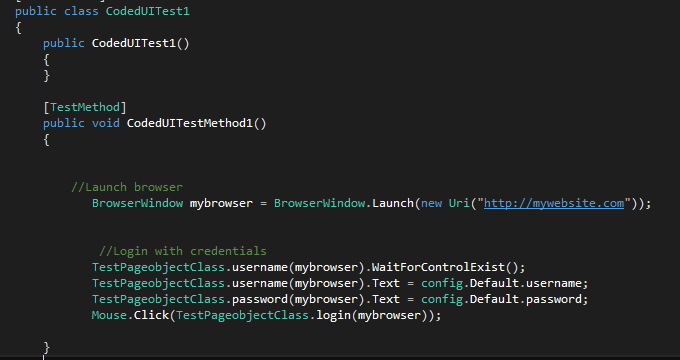
BrowserWindow mybrowser = BrowserWindow.Launch(new Uri("http://mywebsite.com")); statement supplies you with the browser object that you will be dealing with the Log-in scenario.

You can invoke the above method like TestPageobjectClass.username(mybrowser) where required browser object argument is supplied at the time of the test.

Then you can continue manipulating control's various functionalists to get your work done!

HTH